15 October 2026
Windows 10 Support Has Ended: Upgrade, Replace Or Keep Going?
Windows 10 left support in October 2025. How to tell if your PC can move to Windows 11, when an upgrade is worth it, and how long you can safely wait.
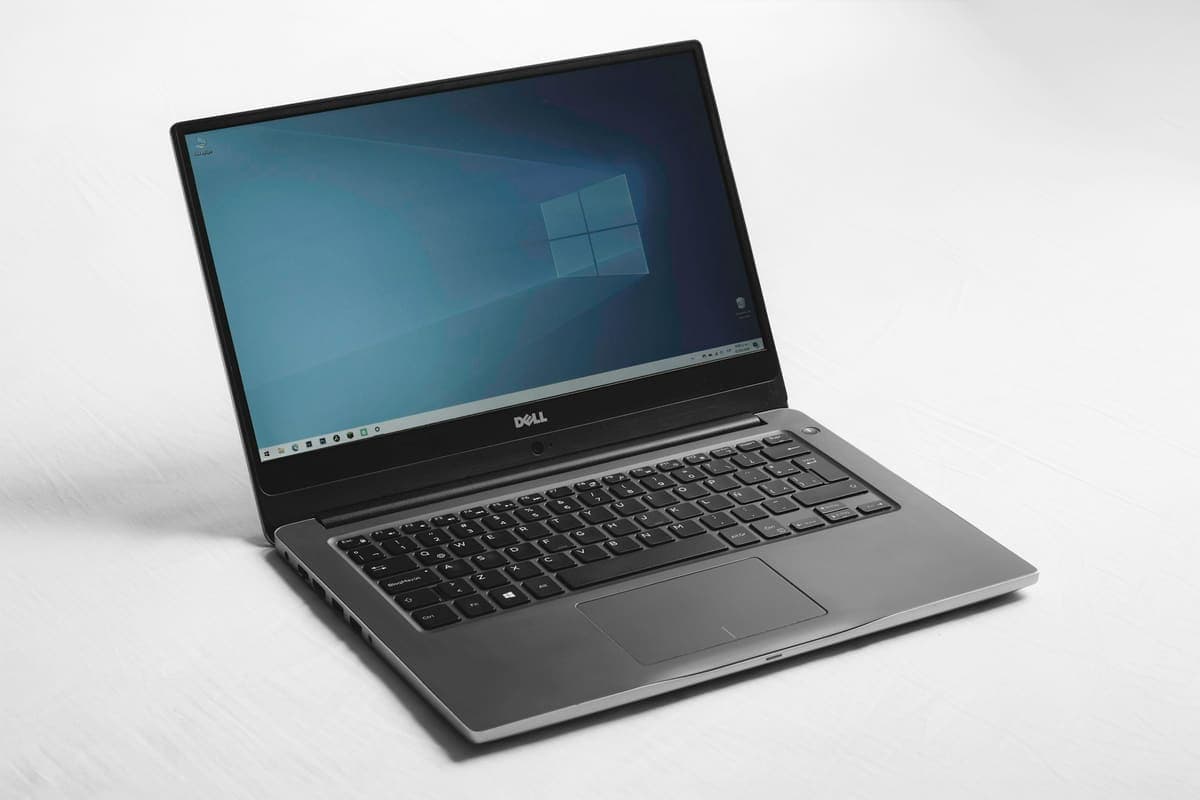
A blue screen is Windows stopping deliberately to avoid damage. The stop code it shows is the most useful clue you get, and most people scroll past it.
A blue screen is not the fault itself. It is Windows detecting that something at a low level has gone wrong — a driver, the memory, the storage — and halting rather than carrying on and corrupting things. The sad face is decoration. The line underneath it that reads something like MEMORY_MANAGEMENT, CRITICAL_PROCESS_DIED or INACCESSIBLE_BOOT_DEVICE is the part worth photographing, because those codes point at genuinely different faults with genuinely different fixes.
Every crash is an unclean shutdown. If the underlying cause is a failing drive or bad memory, continuing to use the machine through repeated blue screens is actively damaging the file system, and turns a straightforward recovery into an expensive one. Storage-related stop codes in particular are a reason to back up first and diagnose second.
Need help right now? Our Windows Support engineers can come directly to your home or office anywhere in Greater London to diagnose and fix this for you.
Blue screens are one of the few faults that leave a written record behind, so the diagnosis is mostly a matter of reading it properly rather than guessing.
Once the cause is fixed, most machines stay stable for years — provided the basics are in place.
We come to your home or office anywhere in Greater London for Windows support.
Windows 10 left support in October 2025. How to tell if your PC can move to Windows 11, when an upgrade is worth it, and how long you can safely wait.
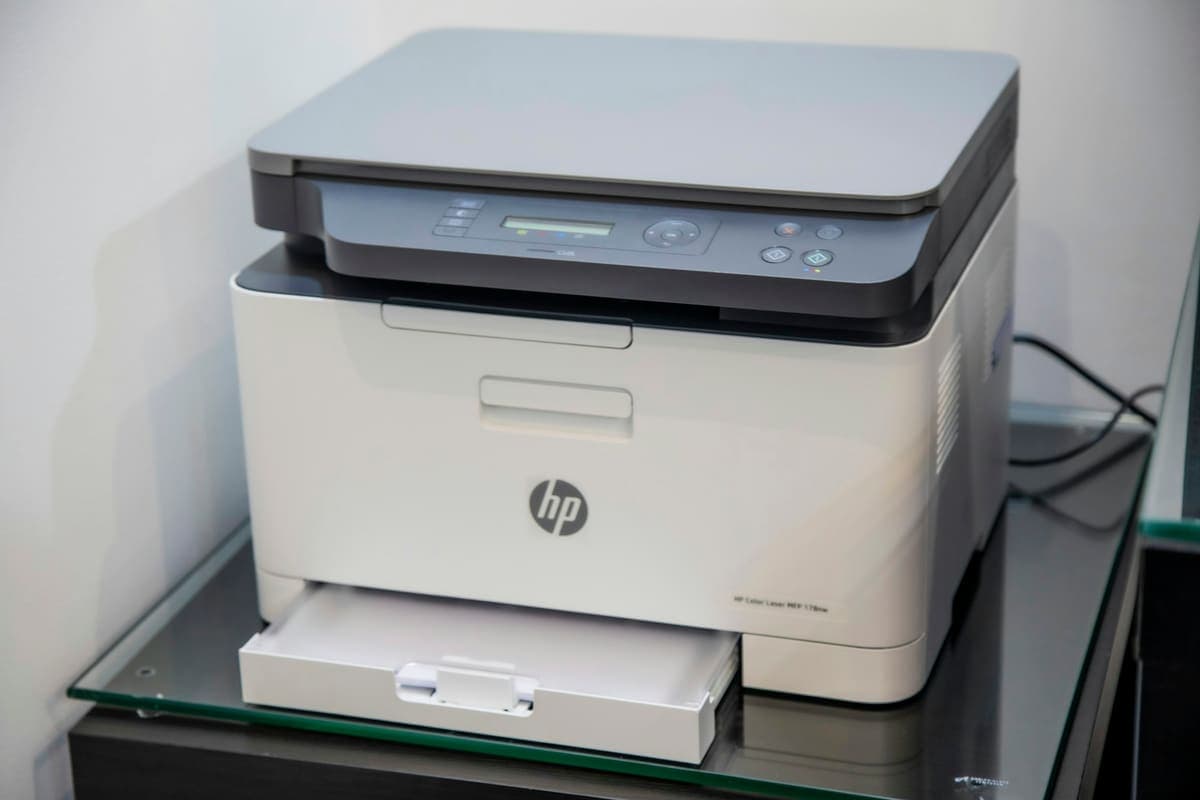
Reinstalling the driver a fourth time will not help if the printer never joined the network. Most wireless printer faults are really network faults.
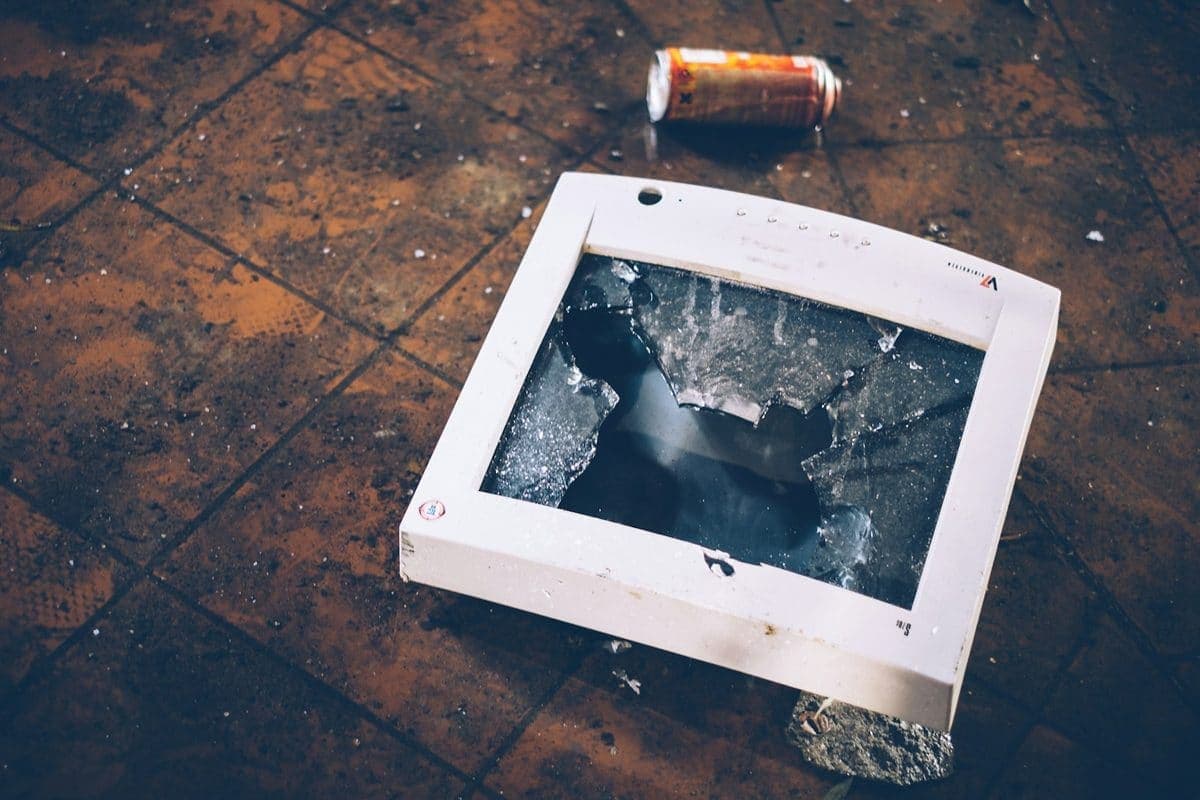
A cracked display looks expensive, but the screen is often the only part that needs attention. The key is confirming the rest of the laptop is healthy.