15 October 2026
Windows 10 Support Has Ended: Upgrade, Replace Or Keep Going?
Windows 10 left support in October 2025. How to tell if your PC can move to Windows 11, when an upgrade is worth it, and how long you can safely wait.
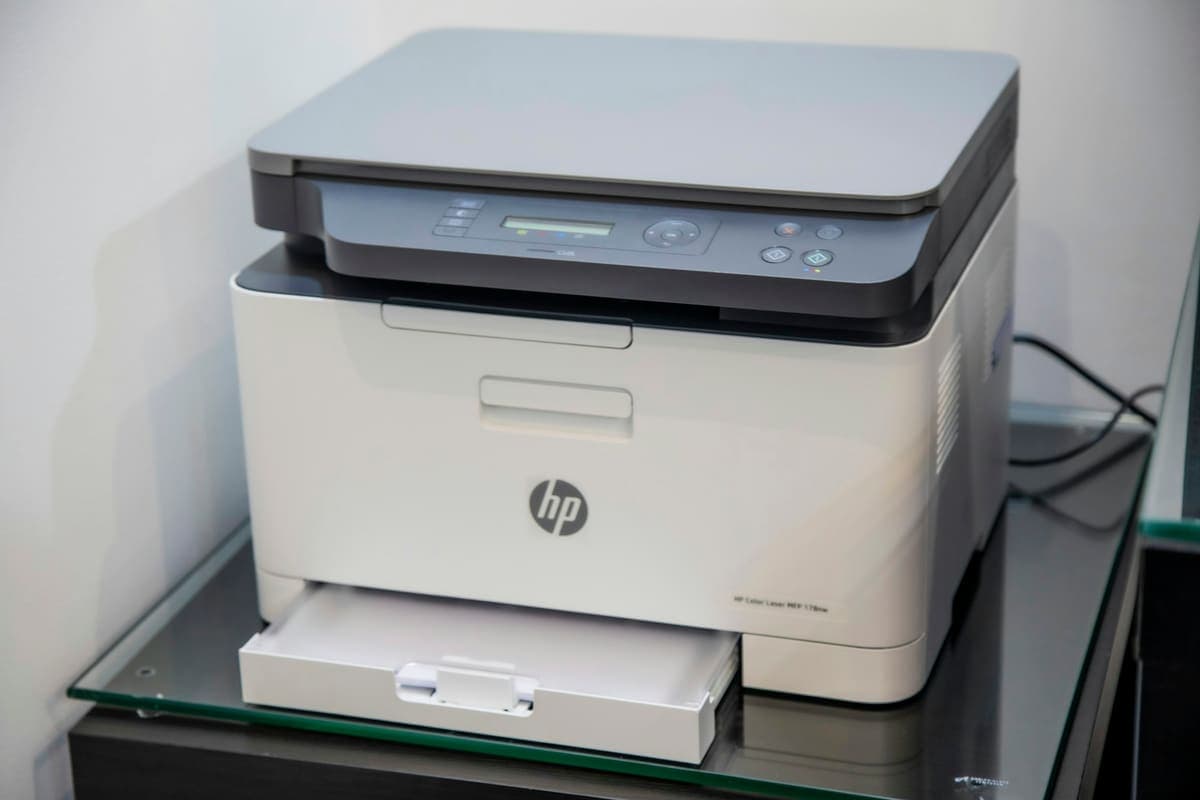
Reinstalling the driver a fourth time will not help if the printer never joined the network. Most wireless printer faults are really network faults.
Almost every home and small-office printer connects on 2.4GHz only. Plenty of modern routers broadcast both bands under a single network name, so when the printer looks for that name and gets steered to a 5GHz radio it cannot use, it simply never joins — and the error you see on the computer is a vague "printer offline". The other common version is a printer that worked for two years and stopped the week the router was replaced, because it is still holding an address from a network that no longer exists.
This one is rarely urgent, but it is the fault people waste the most time on. The driver gets removed and reinstalled, the printer gets factory reset, and none of it touches the actual problem, which is one layer down in the network. Knowing which layer has failed turns an afternoon into ten minutes.
Need help right now? Our Printer Support engineers can come directly to your home or office anywhere in Greater London to diagnose and fix this for you.
The quickest way through this is to prove which half is broken — the connection or the driver — before changing anything on either side.
A wireless printer that is set up properly should not need touching again for years.
We come to your home or office anywhere in Greater London for printer support.
Windows 10 left support in October 2025. How to tell if your PC can move to Windows 11, when an upgrade is worth it, and how long you can safely wait.
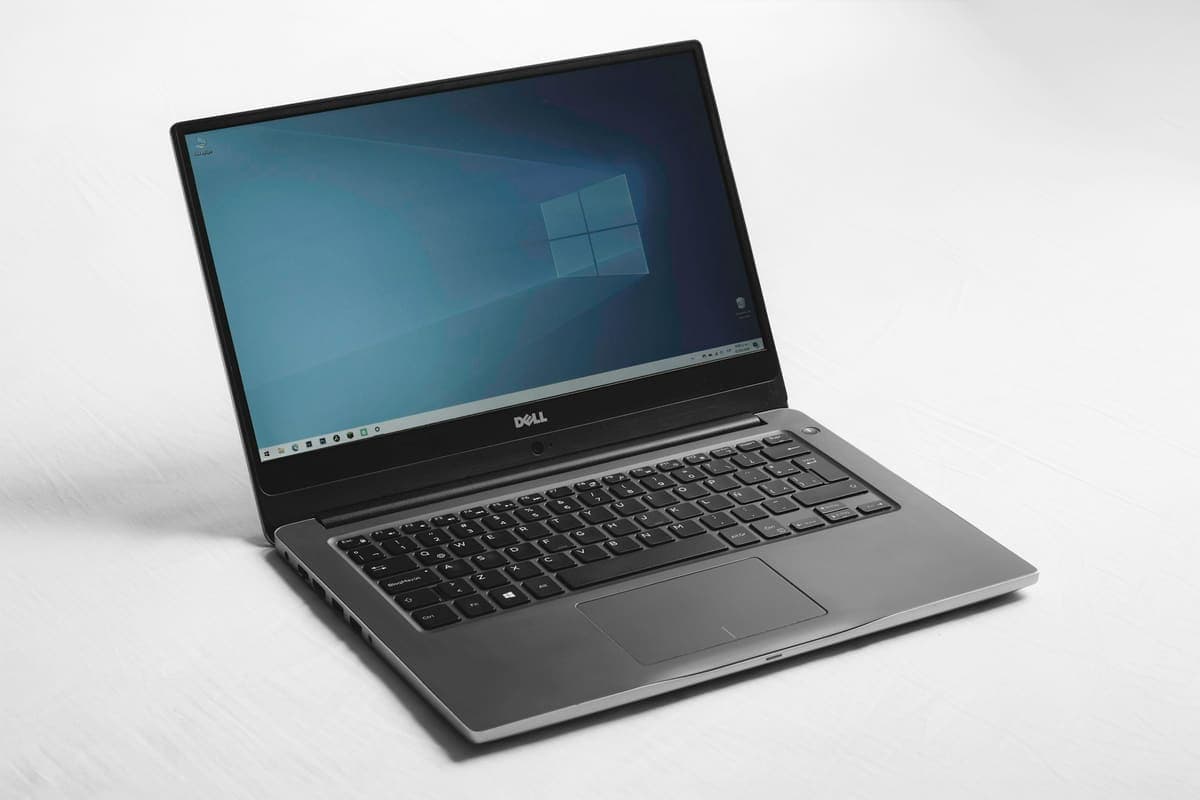
A blue screen is Windows stopping deliberately to avoid damage. The stop code it shows is the most useful clue you get, and most people scroll past it.
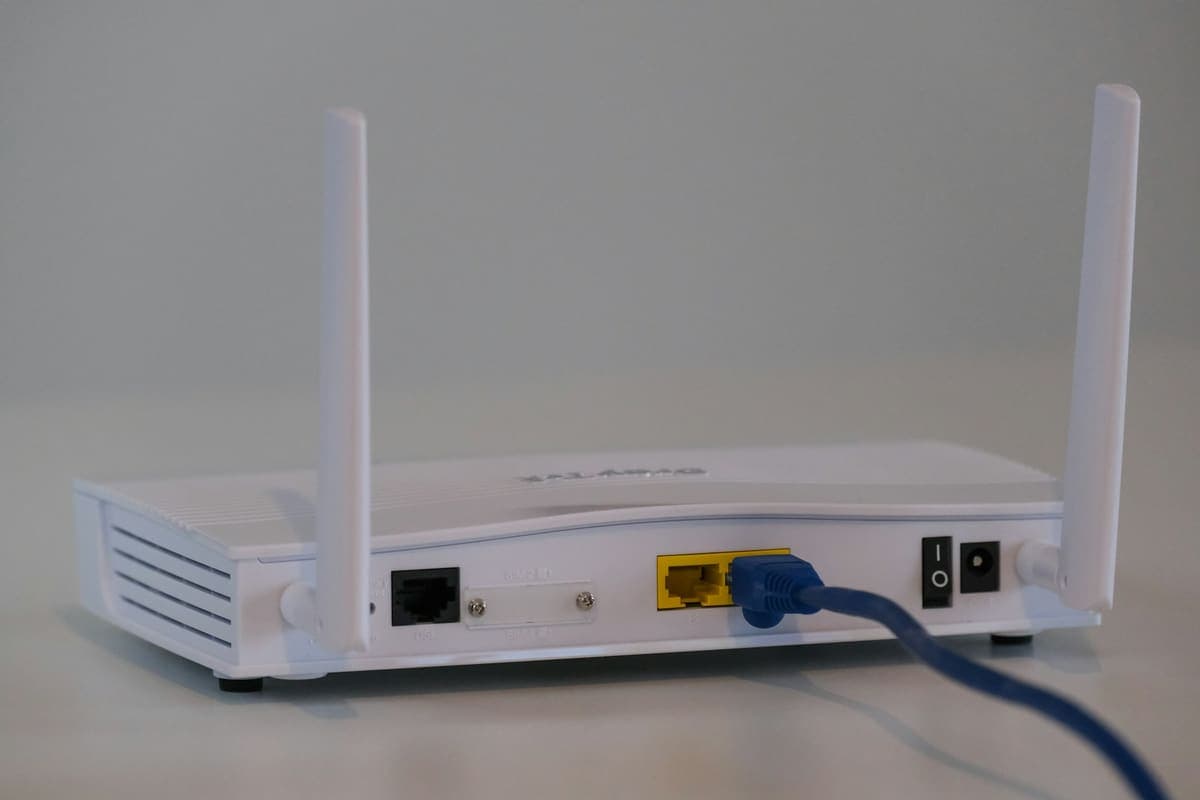
Wi-Fi that fails mid-call but tests fine afterwards is usually a fault between your device and the router, not on the broadband line itself.