8 September 2026
iMac Taking Minutes To Start Up? The Drive Is Usually Why
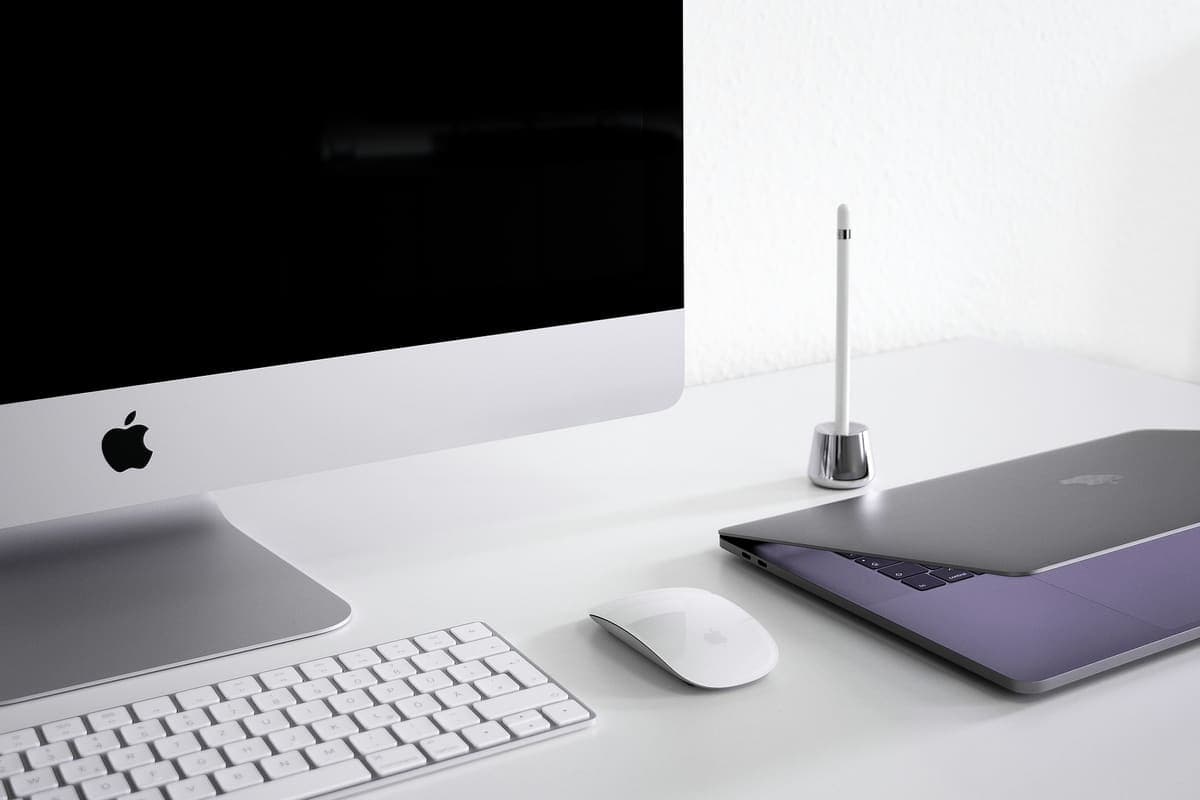
An iMac that takes minutes to boot and beachballs on every click is rarely short of power. It is usually still running on its original spinning drive.
The two upgrades fix completely different problems, and buying the wrong one is the most common way to spend money on a slow computer and notice nothing.
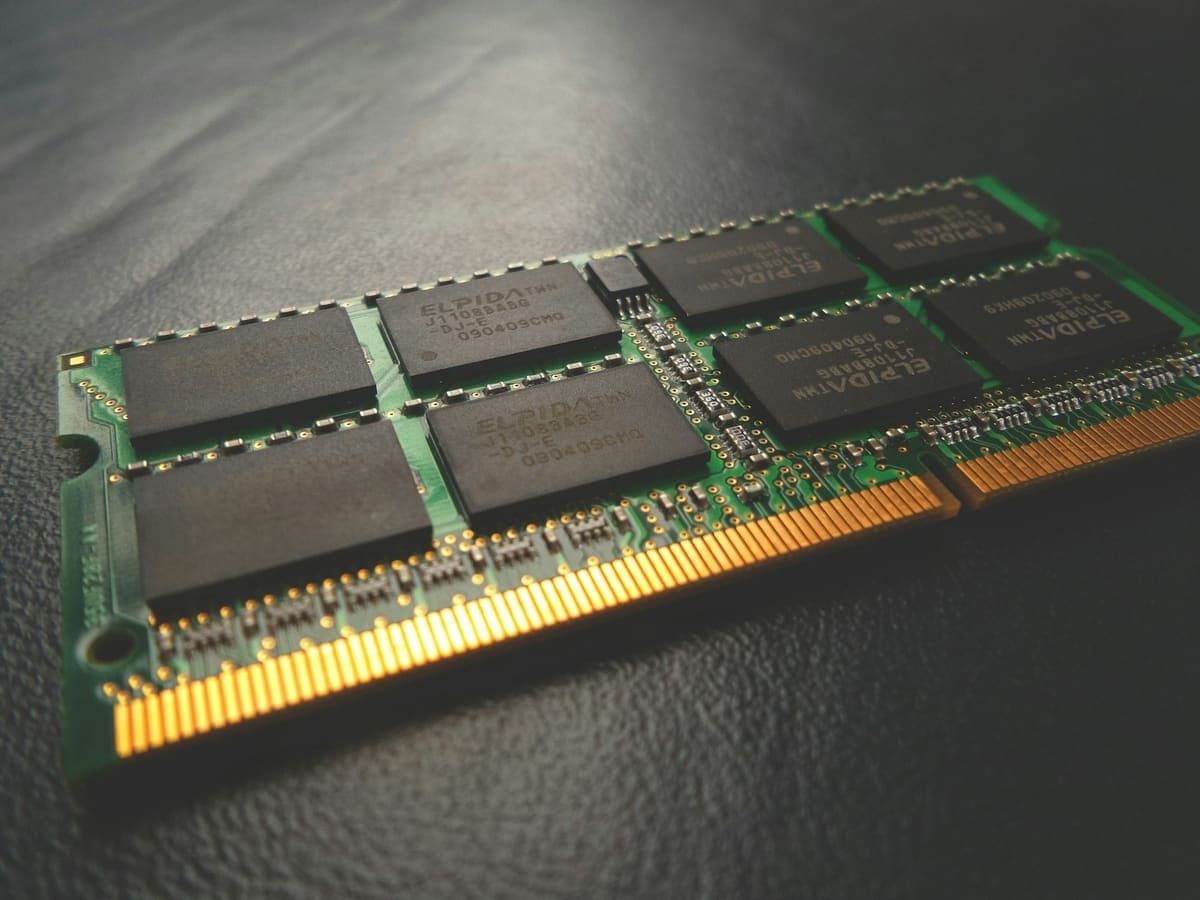
There is a simple rule that covers most machines: if it still has a mechanical hard drive, fit an SSD, and do it before you consider anything else. Nothing else you can buy changes the feel of an older computer as much. RAM is a different fix for a different symptom — it helps when you genuinely run out of memory, which shows up as slowdown with many applications or browser tabs open, and does very little on a machine that is merely waiting on its disk.
This is a decision about where your money goes rather than an emergency. It is worth getting right, because the wrong choice is usually not reversible in any useful sense, and because a growing number of machines have memory soldered to the board — on those, whatever was specified at purchase is what you have for good, and the SSD is the only upgrade left.
Need help right now? Our Hardware Upgrades engineers can come directly to your home or office anywhere in Greater London to diagnose and fix this for you.
The honest answer depends entirely on where your particular machine is being held up, and that takes about ten minutes to establish properly.
A well-chosen upgrade buys a machine several more useful years; these habits protect that.
We come to your home or office anywhere in Greater London for hardware upgrades.
An iMac that takes minutes to boot and beachballs on every click is rarely short of power. It is usually still running on its original spinning drive.
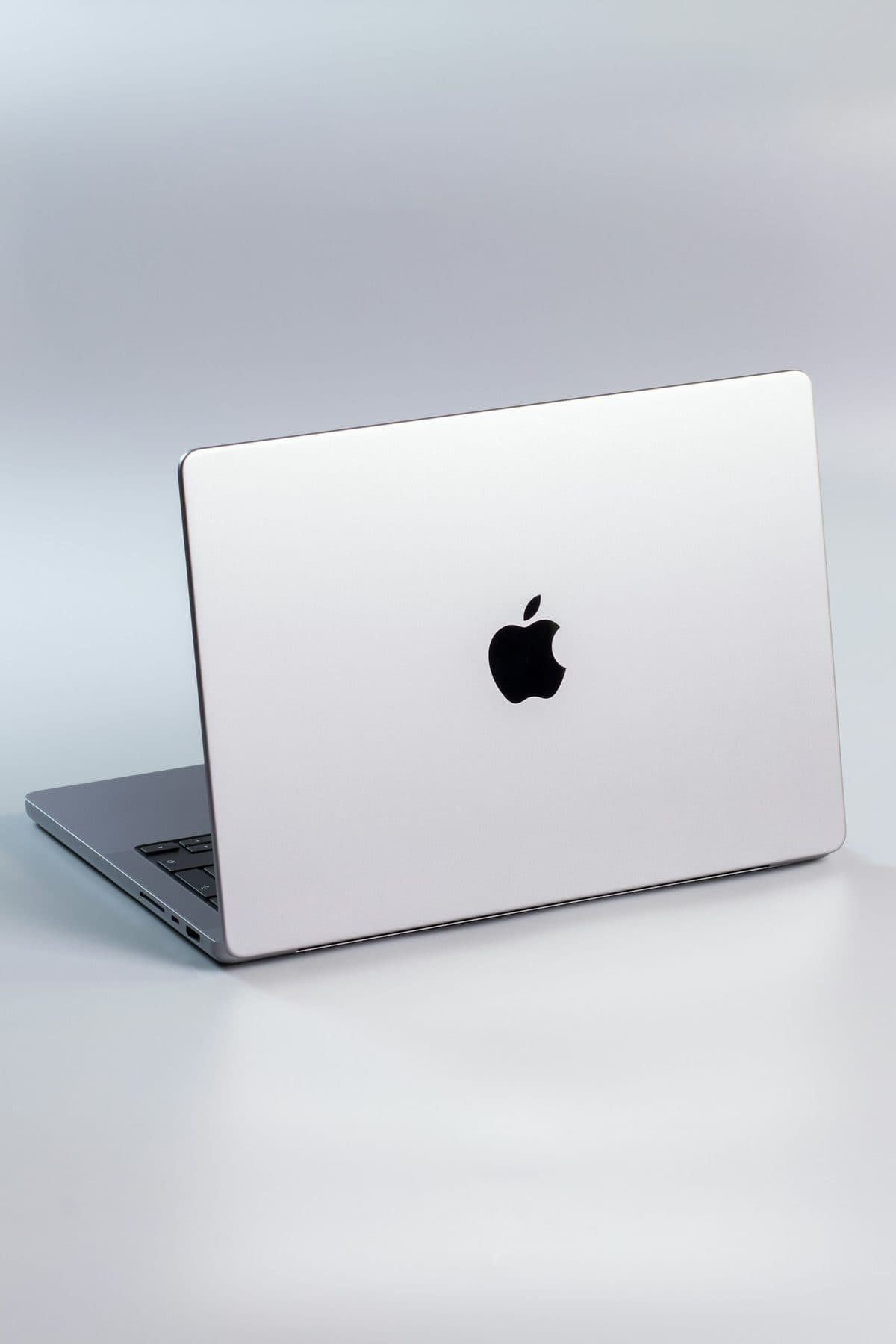
When a MacBook trackpad stops clicking or feels stuck, the trackpad itself is rarely at fault. It is usually the battery swelling underneath it.
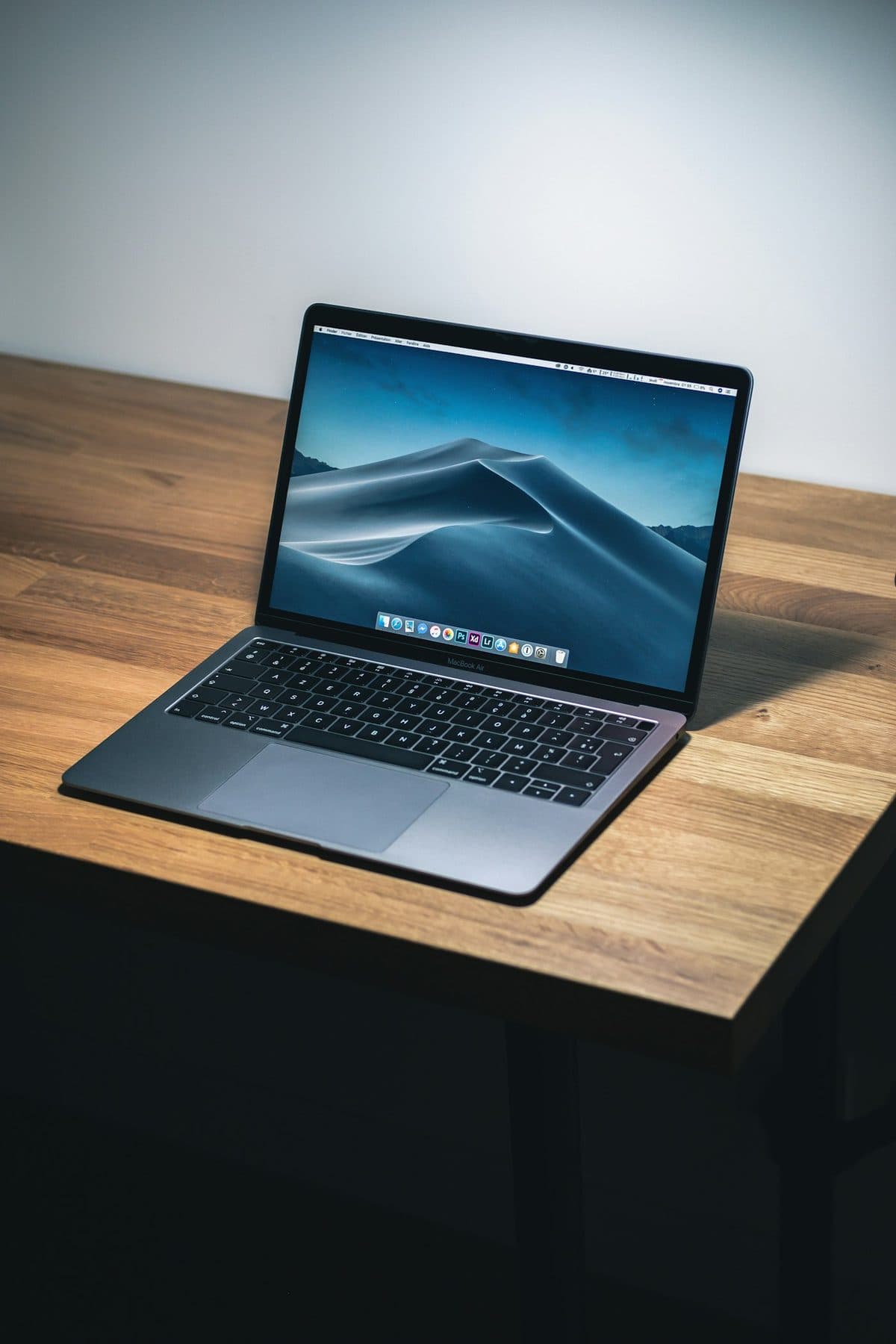
Loud fans and a hot aluminum chassis can indicate thermal throttling. Here is how to keep your MacBook Pro cool.